Updated: September 2026 · Fire TV & Firestick Guide
How to Add an M3U Playlist to Firestick (2026 Guide)
If you already have an M3U playlist URL, adding it to a Firestick is usually
simple. You need a compatible player, your playlist link, and a few minutes
to complete the setup.
The confusing part is that different IPTV players use different menu names.
One app may show Add Playlist, another may say
Load M3U URL, while another simply asks for a playlist
address.
The process itself is almost always the same: install an M3U-compatible
player, add your playlist URL, save it, and allow the player to load the
available channels.
QUICK ANSWER
Add an M3U Playlist to Firestick in 5 Steps
Install a Player
Use a Fire TV app that supports M3U playlists.
Open the App
Launch the player from your Fire TV home screen.
Add Playlist
Select M3U URL, Add Playlist, or a similar option.
Paste the URL
Enter your complete M3U or M3U8 address.
Load Channels
Save the playlist and wait for it to load.
What You Need Before You Start
Before changing any Firestick settings, make sure you actually have an
M3U playlist.
This is normally a web address that points to an M3U or M3U8 playlist.
For example:
You will normally need:
- An Amazon Fire TV or Fire TV Stick
- A working internet connection
- An M3U-compatible player
- Your M3U or M3U8 playlist URL
You do not normally need to convert an M3U playlist into another format
before using it on Fire TV.
Fire OS and Vega OS Are Not the Same
Fire TV devices are no longer all based on exactly the same operating
system. Many existing Fire TV devices use Fire OS, while newer models
can use Amazon’s Vega OS.
Because of this, app availability and installation methods can differ
between Fire TV models. Start by looking for an M3U-compatible player
available directly for your specific Fire TV device.
How to Add an M3U Playlist to Firestick
Once an M3U-compatible player is installed, the actual playlist setup is
usually straightforward.
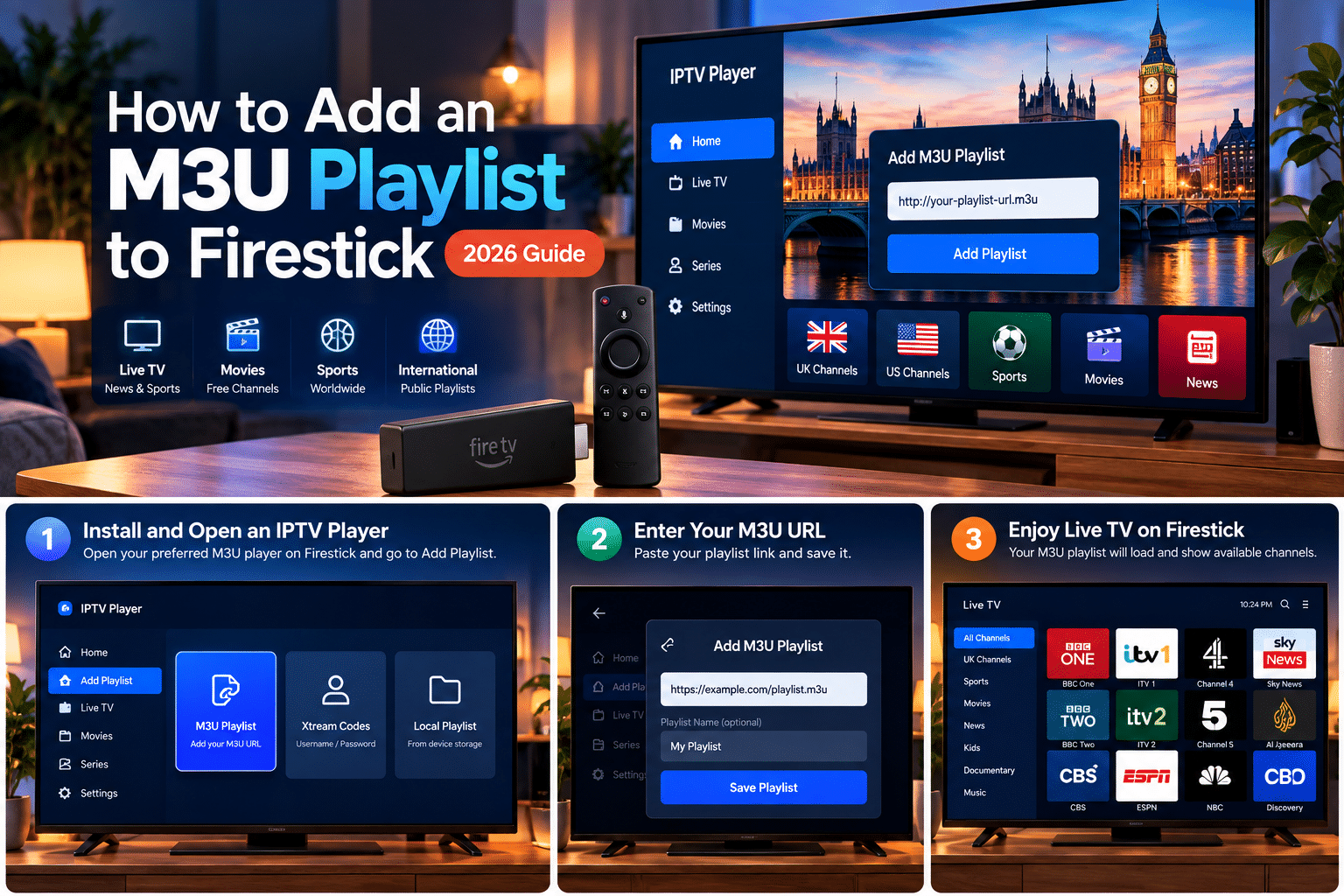
Open Your IPTV Player
Launch the player from your Fire TV home screen.
Depending on the app, you may see options such as:
- Add Playlist
- New Playlist
- Load Playlist
- M3U URL
- Playlist URL
Choose the option related to adding an external M3U playlist.
Choose the M3U Playlist Option
Some players support several login or playlist methods.
You may see choices such as:
- M3U Playlist
- Xtream Codes
- Portal
- Local Playlist
If you were given one long playlist URL, select
M3U Playlist or M3U URL.
Xtream Codes is a different login method and normally uses a server
address, username and password rather than a single playlist URL.
Enter Your M3U URL
Paste the full playlist address into the URL field.
A single missing character can prevent the playlist from loading, so
double-check:
- http:// or https://
- Uppercase and lowercase letters
- Numbers and special characters
- Accidental spaces before or after the URL
If the app asks for a playlist name, you can use any simple label such
as My Playlist.
Save and Load the Playlist
Select Save, Add,
Continue, or the equivalent button in your player.
The app should connect to the playlist URL and read the available
entries.
Small playlists may load almost immediately. Larger playlists can take
longer depending on the app, playlist size and internet connection.
That’s it.
Once the playlist loads, open one of the available channels to test
playback.
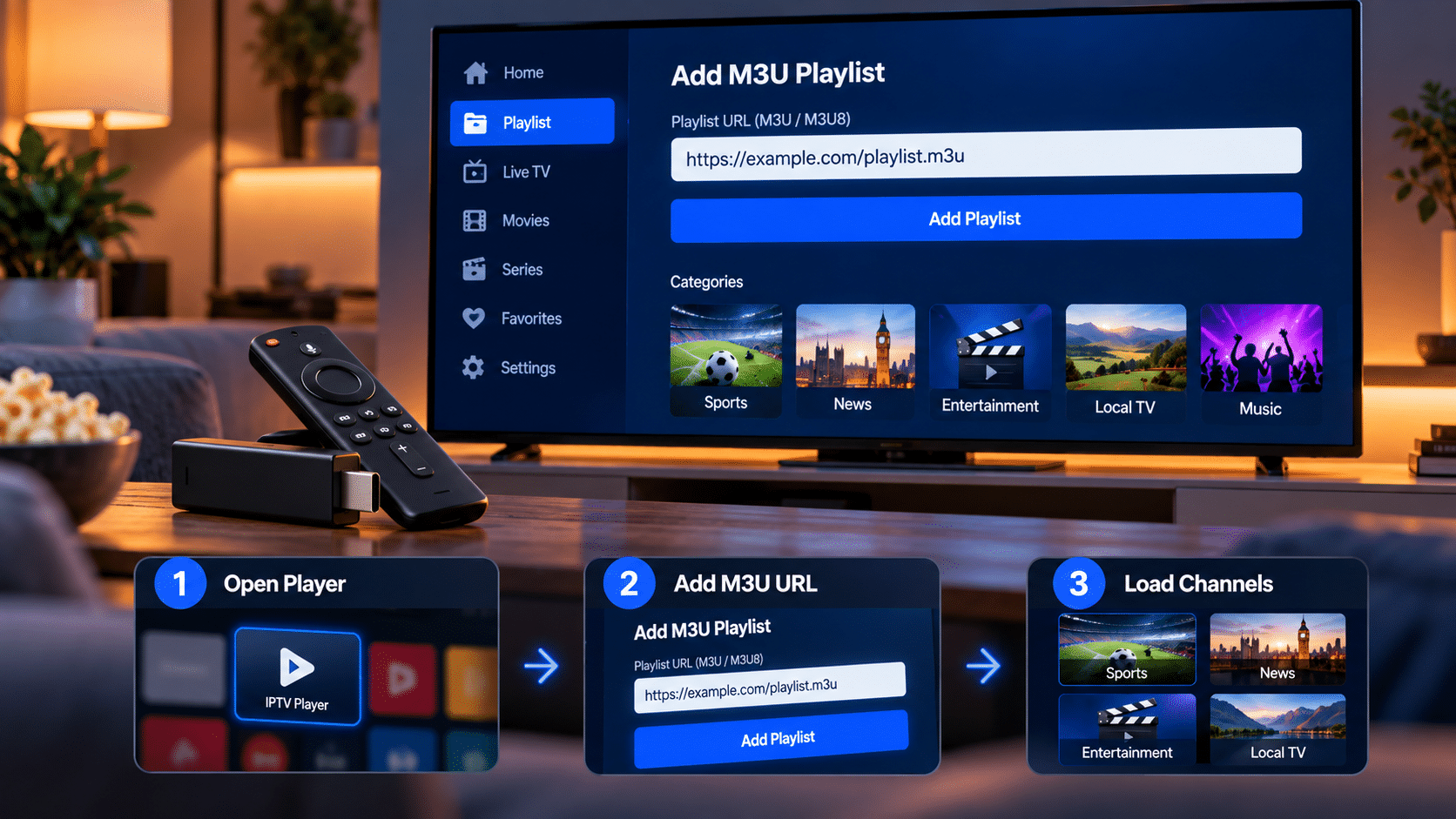
M3U URL vs M3U File on Firestick
M3U playlists are commonly provided either as a URL or as an actual file.
M3U URL
A web address pointing to a playlist.
https://example.com/tv.m3u
This is usually the easiest option on Firestick because the player can
retrieve the playlist directly.
M3U File
An actual file stored on a device.
playlist.m3u
Some players support local M3U files, but using a remote URL is often
simpler on a television device.
How to Test an M3U Playlist Before Using It on Firestick
If your playlist refuses to load, don’t immediately start changing Fire TV
settings.
First test the exact same playlist URL on another device. One of the
easiest ways is to open it with VLC Media Player on a computer.
If the playlist also fails in VLC, the issue is probably with the playlist
URL or its source rather than the Firestick.
If it works in VLC but fails on Fire TV, focus on the Fire TV player or
its configuration.
Learn how to open an IPTV playlist in VLC →
M3U Playlist Not Loading on Firestick?
If the playlist does not appear or gives you an error, work through these
checks before reinstalling everything.
Check the URL
Copy the playlist again and make sure no characters or symbols are
missing.
Check the Format
Make sure you are entering an actual playlist URL rather than a website
login or account page.
Test It in VLC
Try the same M3U link on a computer to determine whether the source is
working.
Reload the Playlist
Refresh the playlist or remove and add it again.
Restart Fire TV
Restart both the player and Firestick before testing again.
Try Another Player
If the URL works elsewhere, another compatible M3U player can help
isolate an app-specific problem.
Playlist Loads but Channels Do Not Play
Seeing the playlist but being unable to play one or more channels is a
different problem from the playlist itself failing to load.
Individual streams can stop working because:
- The original stream is temporarily offline
- The provider changed the stream address
- The source removed the stream
- The stream is geographically restricted
- External playback is blocked by the original source
If categories and channel names appear, the playlist itself has loaded.
A channel failing to play does not automatically mean the entire playlist
is broken.
Can You Use Public M3U Playlists on Firestick?
Yes. If your Fire TV player supports M3U or M3U8 URLs, it can read
compatible public playlists.
Popular Playlist provides country-specific pages focused on public and
free-to-air sources that can be tested using compatible media players.
Browse public IPTV playlists by country →
Do You Need to Sideload an IPTV Player?
Not necessarily.
First check whether a compatible playlist player is available normally on
your Fire TV device.
Sideloading is an alternative installation method available on compatible
Fire OS configurations, but you should not assume that every Fire TV model
uses the same operating system or installation process.
Newer Fire TV hardware can use Vega OS, which means app compatibility and
installation options may differ from older Fire OS tutorials.
Is an M3U Playlist the Same as IPTV Smarters?
No. These are two different things.
A playlist containing media or stream locations.
Software that reads and displays the playlist.
An IPTV player does not automatically mean it includes the content found
inside an external playlist.
If you’re specifically having trouble with IPTV Smarters, see our
troubleshooting guide:
IPTV Smarters Pro not working? See the troubleshooting guide →
Is M3U the Same as M3U8?
M3U and M3U8 are closely related playlist formats. For most Firestick users,
the important point is whether the IPTV player supports both formats.
If your player supports M3U/M3U8 playlist URLs, you can normally paste the
supplied URL directly without manually converting it.
SAFE USE
Is It Legal to Use an M3U Playlist on Firestick?
M3U itself is simply a playlist format. The important question is where
the streams inside the playlist come from.
Popular Playlist focuses on public and free-to-air sources and does not
intentionally provide premium subscription channels, PPV events or
unauthorized paid content.
- Prefer clearly identified public sources
- Use trusted media players
- Avoid suspicious APK downloads
- Be cautious with playlists advertising paid channels for free
Frequently Asked Questions
Can Firestick open an M3U playlist?
playlist URLs. Add the URL inside the player and wait for the available
entries to load.
How do I add an M3U URL to Firestick?
the complete playlist address, save it and allow the playlist to load.
Why won’t my M3U playlist load on Firestick?
a website URL instead of a playlist URL, or an issue with the player.
Testing the same URL in VLC can help identify the cause.
Do I need Downloader to use an M3U playlist?
If you already have an M3U-compatible player installed, you can add the
playlist directly inside that player.
Does M3U work on Fire TV Stick 4K?
playlists. App availability and installation methods may differ by
Fire TV model.
Can I use the same M3U playlist on Firestick and VLC?
can often be tested in VLC and then added to a compatible Fire TV
player.
Why do some channels work while others don’t?
even while the playlist itself continues to load normally.
Do I need a VPN for an M3U playlist?
Individual streams may have geographic restrictions determined by
their original source.