Firestick • Android TV • Smart TV
M3U Playlist Help
IPTV Smarters Pro Not Working? Try These 9 Fixes First
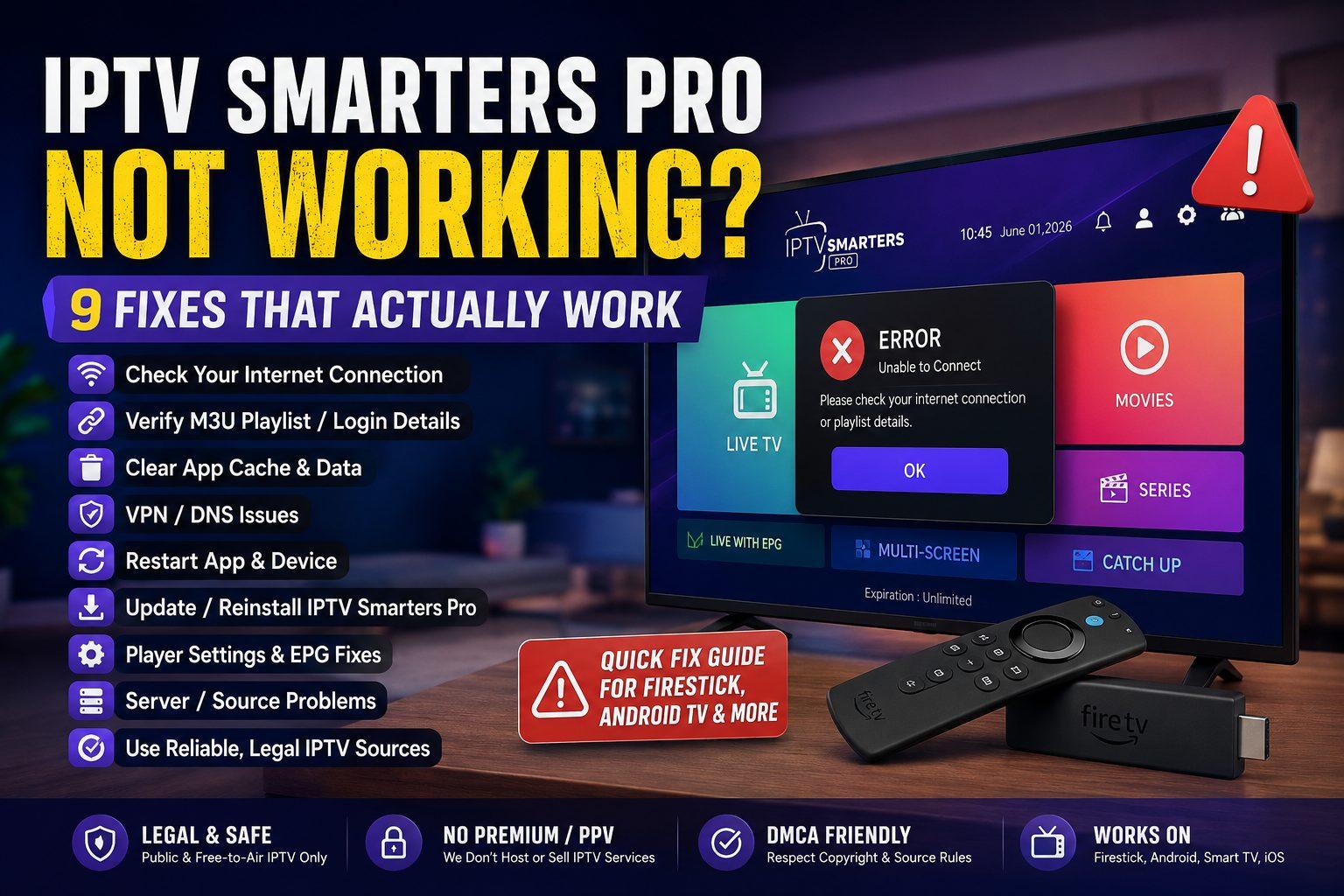
If IPTV Smarters Pro is not loading channels, keeps buffering, shows a login error, or suddenly stops working on Firestick, Android TV, or Smart TV, this guide walks you through the most common fixes before you delete everything and start over.
Popular Playlist does not host, sell, or promote IPTV subscriptions, premium TV channels, PPV events, or copyrighted streams. This troubleshooting guide is written for public, legal, and free-to-air M3U playlists only.
Quick checks before you change anything
Check your playlist URL
A single missing letter, expired token, or copied space at the end of an M3U URL can stop channels from loading.
Restart the device
Firestick, Android TV, and Smart TV apps can freeze after long sessions. A full restart often clears temporary issues.
Test another network
If the playlist works on mobile data but not Wi-Fi, the problem may be your router, DNS, ISP, or VPN setup.
Do not keep reinstalling the app before checking your M3U playlist or login details. If the source itself is offline, reinstalling IPTV Smarters Pro will not fix it.
Common IPTV Smarters Pro errors and what they usually mean
| Error or symptom | Most likely cause | What to try first | Priority |
|---|---|---|---|
| Channels not loading | Wrong M3U URL, expired playlist, or source server issue | Test the M3U link in VLC or use an updated public source | High |
| Login failed | Wrong username, password, server URL, or expired details | Re-enter details manually and avoid copied spaces | High |
| Buffering or freezing | Weak Wi-Fi, overloaded stream source, VPN speed issue, or app cache | Restart router, clear cache, try 5GHz Wi-Fi or Ethernet | Medium |
| App opens but no video plays | Unsupported codec, broken stream, or player engine conflict | Change player settings or test the same link in another player | Medium |
| Works with VPN, not without VPN | Network filtering, ISP blocking, DNS issue, or regional restriction | Try different DNS, restart router, or test a different network | Medium |
| Only some channels fail | Those specific stream links are offline or geo-restricted | Remove dead channels or use an updated public playlist | Normal |
9 fixes for IPTV Smarters Pro not working
1
Restart IPTV Smarters Pro and your streaming device
Start simple. Close IPTV Smarters Pro completely, then restart your Firestick, Android TV box, Smart TV, or mobile device. A restart clears temporary app problems, stuck background processes, and small memory issues that can stop playlists from loading correctly.
On Firestick, do not just press the Home button. Go to your device settings and restart the Fire TV device, or unplug it for around 30 seconds before plugging it back in.
2
Check if your M3U playlist URL is still active
If IPTV Smarters Pro shows no channels, the first thing to check is the playlist itself. M3U links can expire, move, or stop working when the original public source changes its stream URLs.
- Copy the M3U URL again and make sure there are no extra spaces.
- Open the same M3U link in VLC Media Player if possible.
- Check whether the issue happens with all channels or only a few channels.
- Use updated public and free-to-air playlists instead of old shared links.
If the same playlist does not work in another player, IPTV Smarters Pro is probably not the main problem.
3
Re-enter your login details manually
If you use Xtream Codes or a portal-style login, re-enter your username, password, and server URL manually. Copy-and-paste often adds hidden spaces, especially on TV keyboards and mobile devices.
Also check the server URL format. A missing http:// or https://, wrong port number, or extra slash can break the login.
4
Clear IPTV Smarters Pro cache
App cache can become outdated or corrupted. Clearing cache is usually safe because it removes temporary files, not your whole device setup.
On Firestick
Go to Settings → Applications → Manage Installed Applications → IPTV Smarters Pro → Clear Cache. After that, restart the Firestick and open the app again.
On Android TV
Go to Settings → Apps → IPTV Smarters Pro → Storage → Clear Cache. The exact wording may change depending on the device brand.
Use “Clear Cache” first. Only use “Clear Data” if you are ready to add your playlist or login details again.
5
Update the app or reinstall it cleanly
If IPTV Smarters Pro keeps crashing, freezing, or opening to a blank screen, update the app to the latest available version for your device. If updating does not help, uninstall it and reinstall a clean copy.
Before reinstalling, make sure you have your M3U URL or login details saved somewhere safe. Reinstalling the app can remove your saved playlists and settings.
6
Test your internet speed and Wi-Fi signal
IPTV streams need a stable connection, not just a fast one. A speed test may look fine, but weak Wi-Fi, packet loss, or router congestion can still cause freezing and buffering.
- Move the Firestick or Android TV closer to the router.
- Use 5GHz Wi-Fi when available.
- Restart your router.
- Disconnect unused devices from the network.
- Try Ethernet if your streaming device supports it.
7
Turn your VPN off, then test again
A VPN can help with privacy, but it can also slow down streams or cause some playlist sources to fail. Turn the VPN off and test the same playlist again. If it works without the VPN, try another VPN location or protocol.
If the playlist only works with a VPN, the issue may be related to network routing, regional access, DNS, or ISP filtering. For legal public streams, always respect the source’s regional availability and terms.
8
Change the player engine inside IPTV Smarters Pro
Some streams do not play well with every built-in player engine. If channels load but video does not play, open the app settings and try a different player option if available.
You can also test the same M3U link in another player like VLC. If the stream works in VLC but not in IPTV Smarters Pro, the issue may be a player compatibility problem rather than a playlist problem.
9
Replace outdated or unsafe playlist sources
Old playlist links are one of the biggest reasons IPTV Smarters Pro stops working. Public M3U playlists change often because channels move, sources update URLs, or streams go offline.
For a safer experience, use playlists that focus on public, legal, and free-to-air channels. Avoid playlists that advertise premium sports, PPV, paid movie channels, or copyrighted networks without clear authorization.
Video guide: fixing IPTV Smarters Pro on Firestick
Embedded YouTube players can sometimes be blocked by browser privacy settings, security plugins, or theme-level referrer rules. To avoid video player errors on this page, use the direct YouTube button below.
Watch the Firestick troubleshooting video
This external video shows common ways to fix IPTV Smarters Pro when it is not working on a Firestick, including app-level and device-level checks.
The video is included for general troubleshooting help. Popular Playlist is not affiliated with the video creator and does not sell IPTV services.
When the problem is not IPTV Smarters Pro
Sometimes the app is fine, but the stream source is not. If your playlist is expired, the server is offline, or a public channel changed its streaming URL, the app cannot fix that automatically.
| Test | If it works | If it fails |
|---|---|---|
| Open the M3U link in VLC | The issue may be IPTV Smarters Pro settings | The playlist source may be broken or offline |
| Try a different Wi-Fi or mobile hotspot | Your home network, router, or ISP may be involved | The playlist or app setup is more likely the issue |
| Try another legal public playlist | Your old playlist is likely outdated | Your app or device may need deeper troubleshooting |
Need a cleaner public playlist setup?
Popular Playlist focuses on public, legal, and free-to-air IPTV/M3U resources. We do not list premium channels, PPV events, or unauthorized copyrighted streams.
FAQ: IPTV Smarters Pro not working
Why is IPTV Smarters Pro not loading channels?
The most common reasons are an expired M3U playlist, wrong login details, app cache problems, unstable internet, VPN conflicts, or a source server that is temporarily offline.
Why does IPTV Smarters Pro work on mobile data but not Wi-Fi?
That usually points to a router, DNS, ISP, or network filtering issue. Restart your router, test another DNS, disable VPN temporarily, and try the same playlist on another device.
Should I clear cache or clear data?
Clear cache first because it only removes temporary files. Clear data only if you are ready to set up IPTV Smarters Pro again, because it may remove saved playlists and login details.
Can a broken M3U playlist make IPTV Smarters Pro look broken?
Yes. IPTV Smarters Pro is only a player. If the M3U playlist is outdated, expired, blocked, or offline, the app may show no channels or playback errors even when the app itself is working.
Is IPTV Smarters Pro itself an IPTV service?
No. IPTV Smarters Pro is a media player. It does not provide channels by itself. You need a working and legal playlist or login source to play content.
Does Popular Playlist provide premium IPTV channels?
No. Popular Playlist focuses on public, legal, and free-to-air IPTV/M3U resources only. We do not host or promote premium TV channels, PPV, or unauthorized copyrighted streams.